
สำหรับการทำ Auto Restart Palworld Dedicate Server on Windows ในบทความนี้จะเป็นการใช้ ARRCON ซึ่งเป็น Client ของ RCON ที่ทำงานบน Terminal ผ่าน Source RCON Protocol
ขั้นตอนการติดตั้ง RCON Client
1. Download RCON Client สำหรับครั้งนี้เราใช้ ARRCON
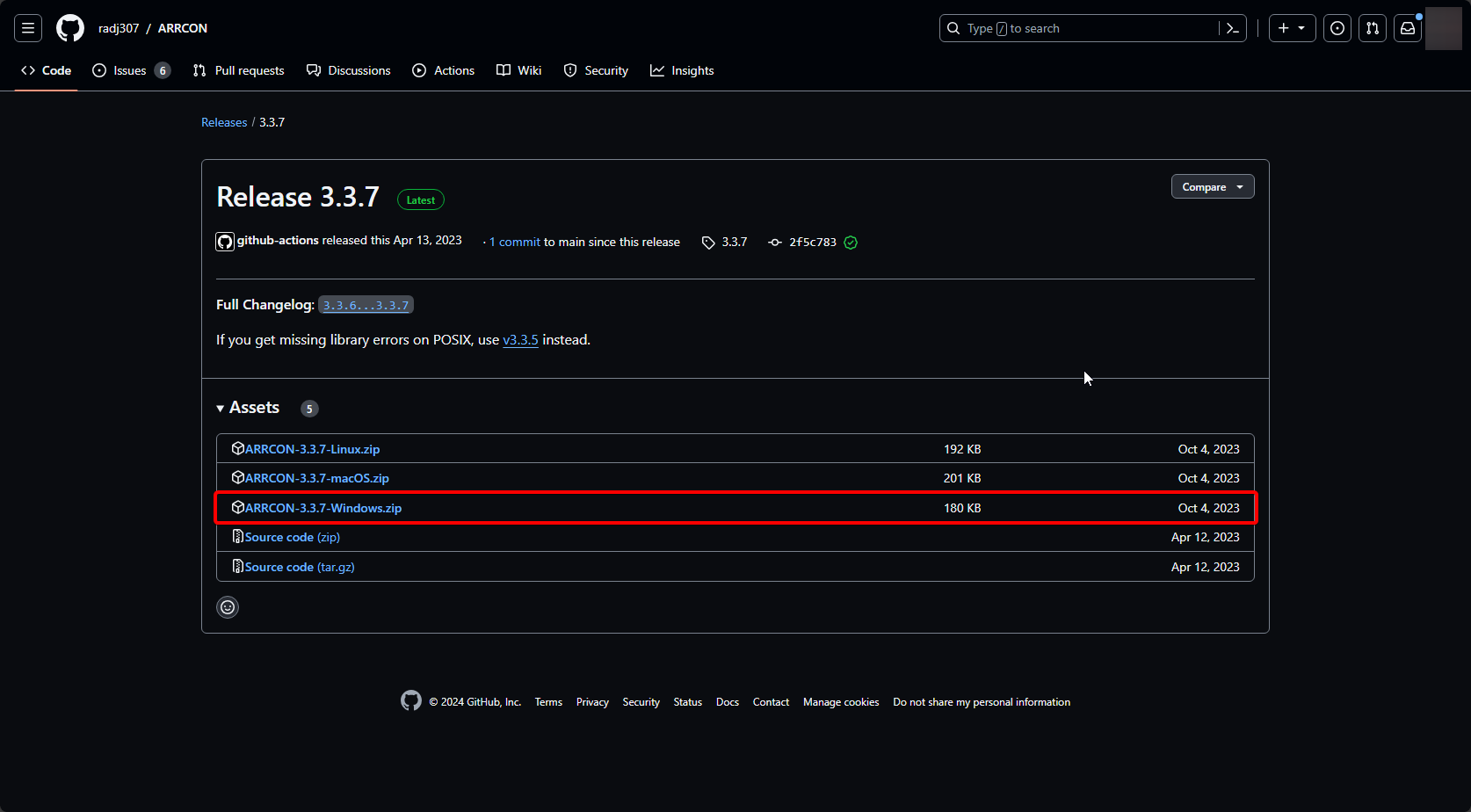
2. Extract ไฟล์และนำไปไว้ที่ ไดร์ฟ C:\Arrcon\ARRCON.exe
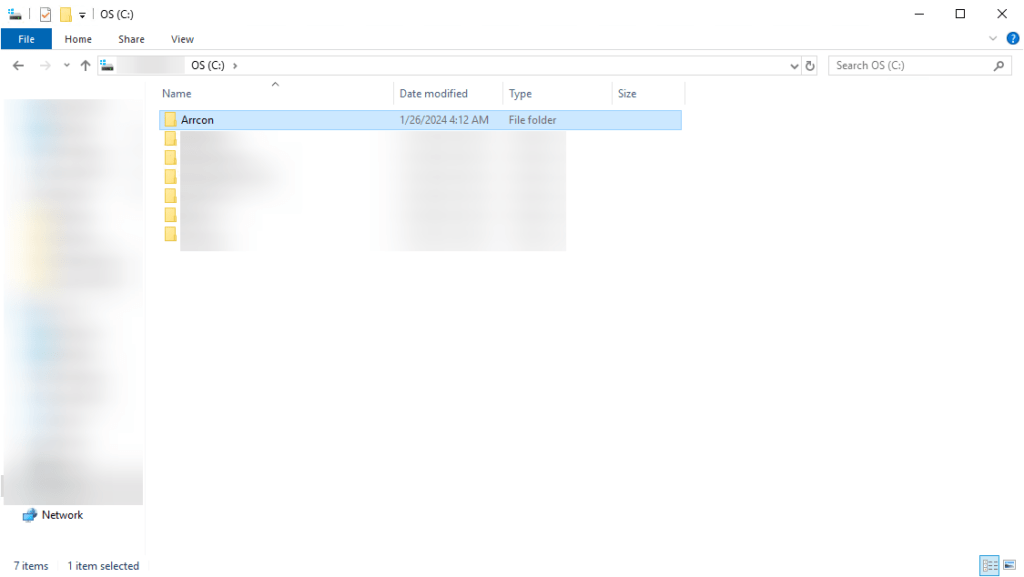
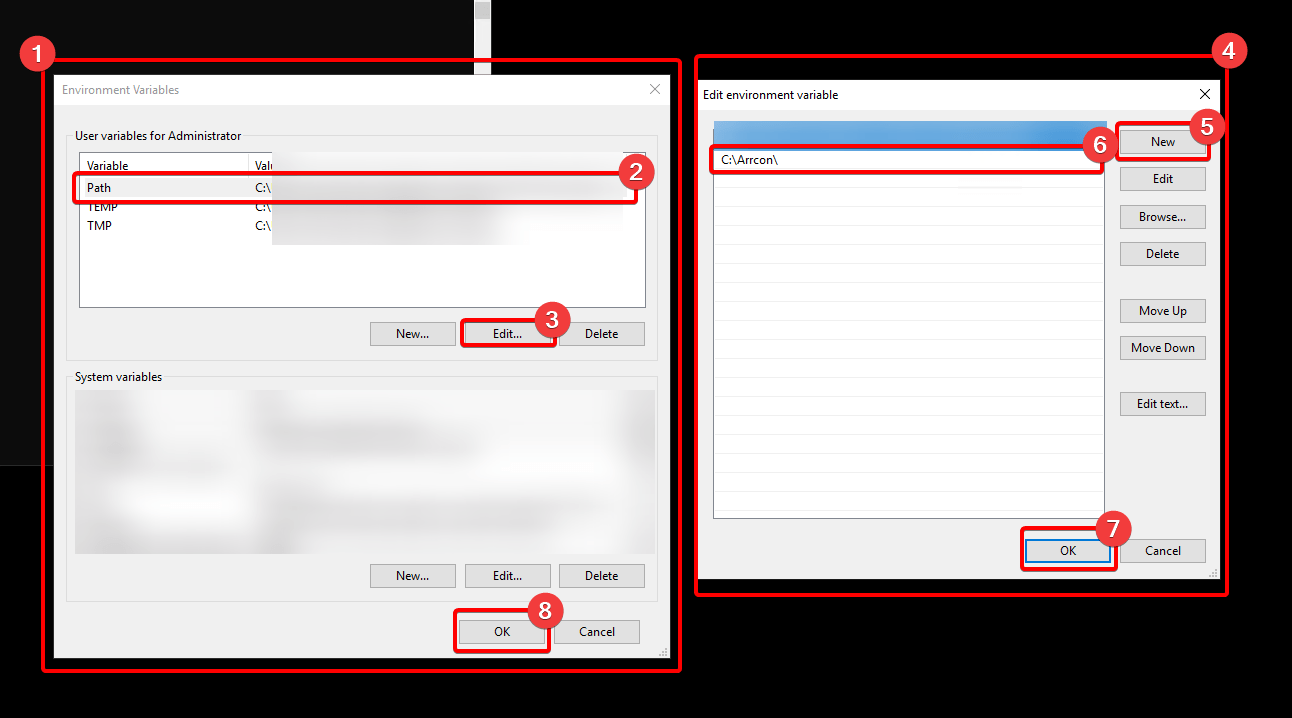
3.ตั้งค่า Path ของ User variables เพื่อสามารถเรียกใช้งาน ARRCON จากที่ไหนก็ได้ผ่าน Terminal
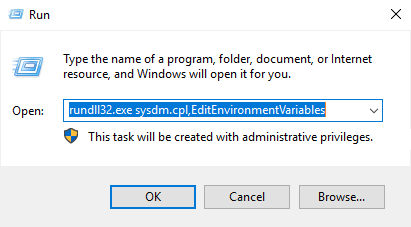
โดย กด Win+R และวาง rundll32.exe sysdm.cpl,EditEnvironmentVariables และกด Enter
ภายใต้ “User variables for …” ให้เลือก Path (2) และคลิก Edit (3) และจะมีหน้าต่างแสดงขึ้นมา (4) ให้กด New (5) และให้วาง Path (6) ที่อยู่ของ ARRCON.exe อยู่ ตัวอย่างเช่น ARRCON.exe อยู่ Path C:\Arrcon\ARRCON.exe ให้ใส่แค่ C:\Arrcon\ และกด OK (7 และ 8)
สามารถทดสอบเรียกใช้ ARRCON ได้โดยเปิด Command Prompt และ Run Command ” ARRCON -h หรือ ARRCON –help ” ว่าสามารถใช้งานได้หรือไม่
ขั้นตอนการ Setting Auto Restart
1. ไปที่ PalWorldSettings.ini (อยู่ใน PalServer\Pal\Saved\Config\WindowsServer) ให้ทำการ Edit โดยค้นหาคำว่า RCONEnable=False โดยเปลี่ยนเป็น RCONEnable=True และตั้งค่า AdminPassword โดยมองหา AdminPassword=”PasswordHere”
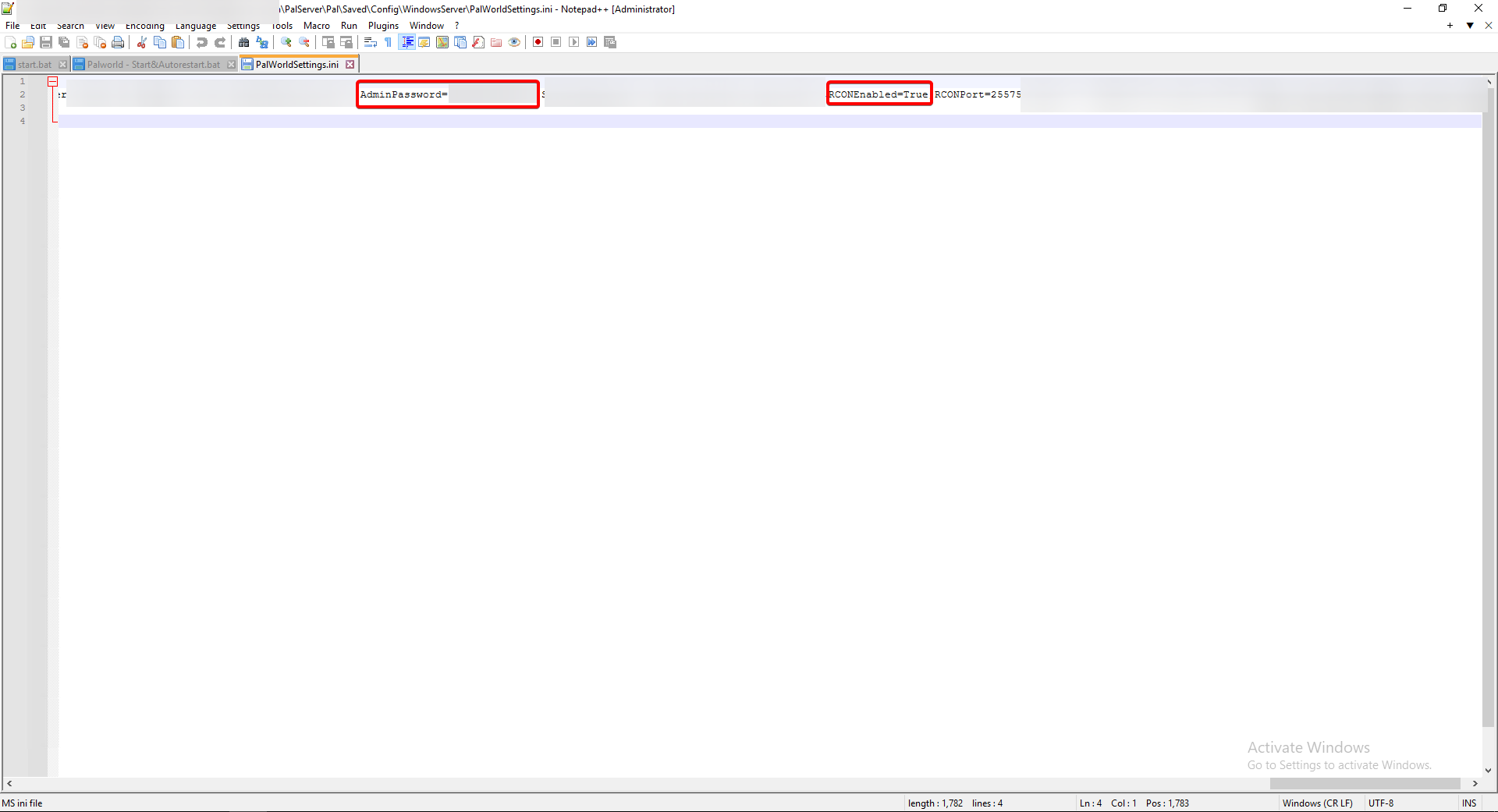
2. ต่อไปจะเป็นการสร้าง Batch File เพื่อ Run คำสั่ง Auto Restart
สิ่งที่ควรรู้
- หากไม่ได้ Run คำสั่งบนเครื่องเดียวกันจะต้องเปลี่ยน IP จาก 127.0.0.1 เป็น IP ของเครื่อง Server นั้น
- หน่วยเวลาที่ใช้ในคำสั่งจะมีหน่วยเป็น วินาที
:start
timeout 14100 > NUL
start ARRCON.exe -H 127.0.0.1 -P 25575 -p AdminPasswordHere “Broadcast ServerRestartIn5min.”
timeout 240 > NUL
start ARRCON.exe -H 127.0.0.1 -P 25575 -p AdminPasswordHere “save”
timeout 5 > NUL
start ARRCON.exe -H 127.0.0.1 -P 25575 -p AdminPasswordHere “shutdown 60 ServerRestartIn1minLOGOUTNOW.”
timeout 60 > NUL
start “” “location of your PalServer.exe”
goto start
(Example of location of Palserver.exe: C:\Users\Administrator\Desktop\steamcmd\steamapps\common\PalServer\PalServer.exe)
หาก Start Server ด้วย .bat file ให้เปลี่ยนจาก PalServer.exe เป็น ชื่อไฟล์.bat
(Example: C:\Users\Administrator\Desktop\steamcmd\steamapps\common\PalServer\PalServerStart.bat)
และ Save as ServerRestart.bat
Run Server ให้เรียบร้อยก่อน Run ServerRestart.bat
Leave a Reply